
Smart TV Setup Process Simplified
- samsonizy
- Mar 23
- 4 min read

Setting up a smart TV might seem tricky at first, but I’m here to walk you through it step-by-step. Whether you just bought a new TV or want to upgrade your current setup, this guide will make the process smooth and enjoyable. You’ll be streaming your favorite shows, movies, and apps in no time. Ready to get started? Let’s dive in!
Understanding the Smart TV Setup Process
The smart TV setup process is easier than you think. It involves connecting your TV to power, hooking it up to the internet, and configuring your preferences. Most smart TVs come with a quick start guide, but sometimes those instructions can be confusing or incomplete. I’ll break it down into simple steps so you can follow along without any stress.
First, you’ll want to find the perfect spot for your TV. Consider the lighting in the room, the distance from your seating area, and where your power outlets are located. Once your TV is in place, plug it into a power source and turn it on.
Next, you’ll be prompted to select your language and region. This helps the TV tailor its settings to your location. After that, it’s time to connect to the internet. A stable connection is key for streaming content smoothly.
If you’re using Wi-Fi, select your network from the list and enter the password. For a wired connection, plug in an Ethernet cable from your router to the TV. Once connected, your TV may check for software updates. Installing these updates ensures you have the latest features and security patches.
Finally, sign in to your preferred streaming services like Netflix, Hulu, or Amazon Prime. Many smart TVs also allow you to download additional apps from their app store. Customize your home screen to keep your favorite apps handy.

What Connections Are Needed for a Smart TV?
Knowing what connections your smart TV needs is essential for a smooth setup. Here’s a quick rundown of the most common connections:
Power Cable: This is the basic connection to get your TV running.
Internet Connection: Either Wi-Fi or Ethernet. Wi-Fi is convenient, but Ethernet offers a more stable connection.
HDMI Ports: These are used to connect external devices like gaming consoles, Blu-ray players, or soundbars.
USB Ports: Useful for plugging in flash drives or external hard drives to play media files.
Audio Output: If you want to connect your TV to an external sound system, look for optical audio or headphone jacks.
Antenna or Cable Input: For watching local channels or cable TV.
Make sure you have the necessary cables and devices ready before starting your setup. If you plan to mount your TV on the wall, consider cable management solutions to keep everything neat and tidy.
Tips for Optimizing Your Smart TV Setup
Once your TV is up and running, there are a few things you can do to enhance your viewing experience:
Adjust Picture Settings: Most TVs come with preset modes like Cinema, Sports, or Vivid. Try them out and tweak brightness, contrast, and color to suit your room’s lighting.
Enable Voice Control: Many smart TVs support voice assistants. Setting this up can make searching for content faster and hands-free.
Set Up Parental Controls: If you have kids, use parental controls to restrict access to certain content.
Organize Your Apps: Remove apps you don’t use and arrange the rest for easy access.
Use a Universal Remote: Simplify your setup by controlling multiple devices with one remote.
These small adjustments can make a big difference in how you enjoy your TV.
Troubleshooting Common Setup Issues
Sometimes, things don’t go as planned during setup. Don’t worry - most problems have simple fixes.
No Internet Connection: Double-check your Wi-Fi password or try restarting your router. If using Ethernet, ensure the cable is securely plugged in.
TV Won’t Turn On: Verify the power cable is connected and the outlet is working. Try a different outlet if needed.
Apps Not Loading: Make sure your TV software is up to date. Restart the TV or reinstall the app.
Poor Picture Quality: Adjust the picture settings or check if the HDMI cable is properly connected.
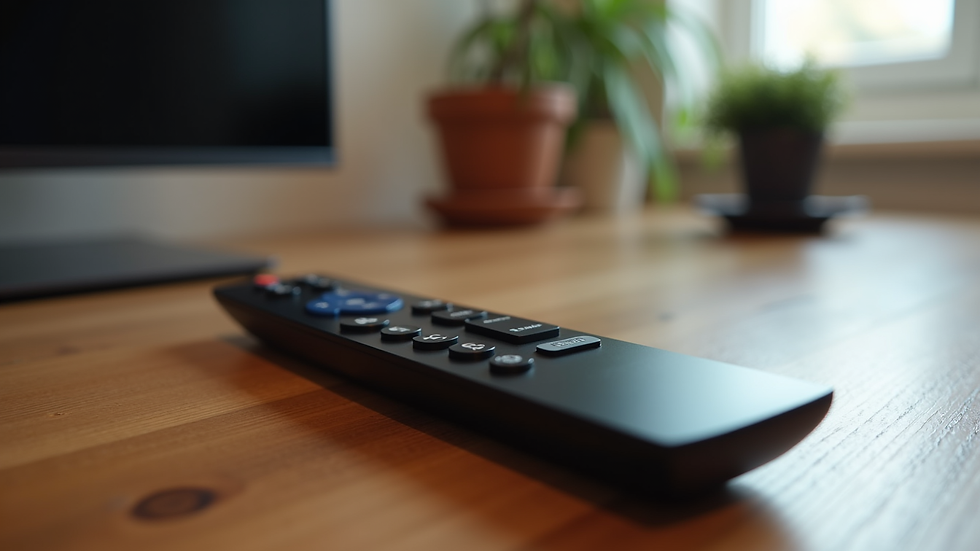
Remote Not Working: Replace the batteries or try pairing the remote again.
If you run into any issues beyond these, consulting your TV’s manual or the manufacturer’s support site can help.
Making the Most of Your Smart TV Setup
Now that your smart TV is set up, it’s time to enjoy all the benefits it offers. Explore new streaming services, discover apps for fitness, cooking, or education, and even connect your smart home devices for a fully integrated experience.
Remember, a well-installed TV not only looks great but also enhances your home entertainment. If you want a professional touch, consider hiring experts who specialize in TV mounting and home tech services. They can ensure your TV is safely mounted, cables are hidden, and your setup is optimized for the best viewing experience.
If you want to learn more about the smart tv setup process or need professional help, don’t hesitate to reach out. A reliable and affordable service can save you time and hassle.
Enjoy your new smart TV and happy streaming!


Comments